Wednesday, 5 February 2014

Boxing and Unboxing in c#

Boxing and unboxing is a  essential concept in .NET’s type system.
With Boxing and unboxing one can link between value-types and reference-types by allowing any value of a value-type to be converted to and from type object.
Boxing and unboxing enables a unified view of the type system wherein a value of any type can ultimately be treated as an object.
Converting a value type to reference type is called Boxing. Unboxing is the opposite operation and is an explicit operation.

using System; 
 
class MainClass { 
  public static void Main() { 
    int x; 
    object obj; 
 
    x = 10; 
    obj = x; // box x into an object 
 
    int y = (int)obj; // unbox obj into an int 
    Console.WriteLine(y); 
  } 
}
 Output:
10 

Boxing occurs when passing values
 
using System; 
 
class MainClass { 
  public static void Main() { 
    int x; 
    
    x = 10; 
    Console.WriteLine("Here is x: " + x); 
 
    // x is automatically boxed when passed to sqr() 
    x = sqr(x); 
    Console.WriteLine("Here is x squared: " + x); 
  } 
 
  static int sqr(object o) { 
    return (int)o * (int)o; 
  } 
}
 
 Output:
 
Here is x: 10
Here is x squared: 100


How to consume webservices in web application

By using this webservice we can get the user details based on username. For that first create one new web application
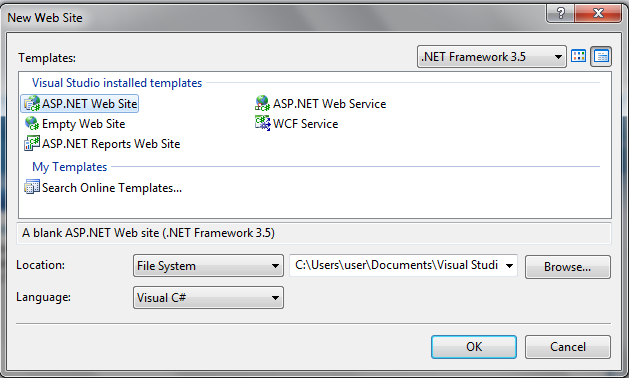
Open visual studio ---> Select File ---> New ---> Web Site ---> select ASP.NET Web Site
 
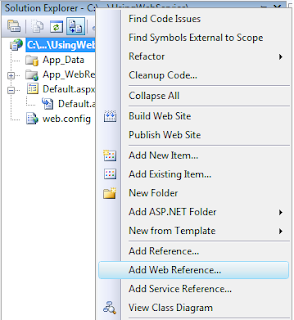
After creation of new website right click on solution explorer and choose “Add web reference” that would be like this  
 
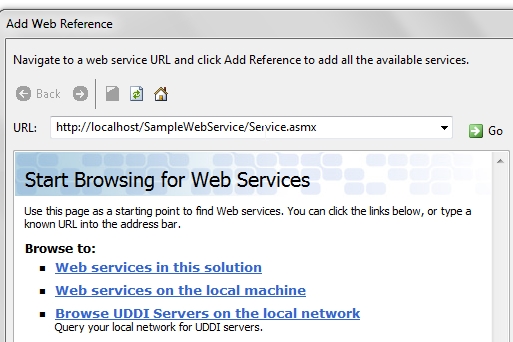
After select Add Web reference option one window will open like this 
 
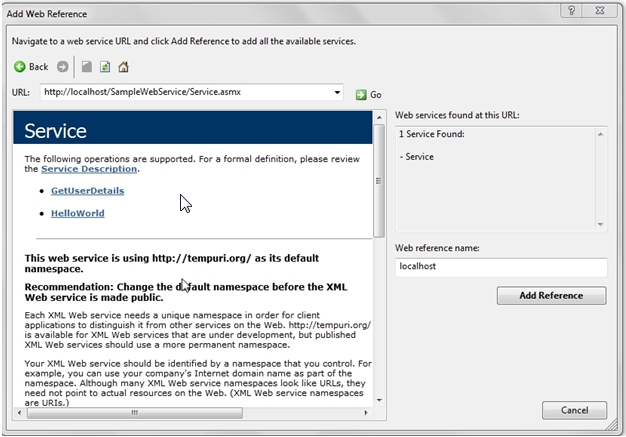
Now enter your locally deployed web service link and click Go button after that your web service will found and window will looks like this 
 
Now click on Add Reference button web service will add successfully. Now open your Default.aspx page and design like this
<html xmlns="http://www.w3.org/1999/xhtml">
<head runat="server">
<title>Getting Data from WebService</title>
</head>
<body>
<form id="form1" runat="server">
<div>
<table>
<tr>
<td>
<b>Enter UserName:</b>
</td>
<td>
<asp:TextBox ID="txtUserName" runat="server"></asp:TextBox>
</td>
<td>
<asp:Button ID="btnSubmit" runat="server" Text="Submit" onclick="btnSubmit_Click" />
</td>
</tr>
</table>
</div>
<div>
<asp:GridView ID="gvUserDetails" runat="server" EmptyDataText="No Record Found">
<RowStyle BackColor="#EFF3FB" />
<FooterStyle BackColor="#507CD1" Font-Bold="True" ForeColor="White" />
<PagerStyle BackColor="#2461BF" ForeColor="White" HorizontalAlign="Center" />
<HeaderStyle BackColor="#507CD1" Font-Bold="True" ForeColor="White" />
<AlternatingRowStyle BackColor="White" />
</asp:GridView>
</div>
</form>
</body>
</html>

Now in code behind add following namespaces
using System.Data;
using System.Xml;

After adding namespaces write the following code in code behind
protected void Page_Load(object sender, EventArgs e)
{
if(!IsPostBack)
{
BindUserDetails("");
}
}
protected void BindUserDetails(string userName)
{
localhost.Service objUserDetails = new localhost.Service(); // you need to create the object of the web service
DataSet dsresult = new DataSet();
XmlElement exelement = objUserDetails.GetUserDetails(userName);
if(exelement!=null)
{
XmlNodeReader nodereader = new XmlNodeReader(exelement);
dsresult.ReadXml(nodereader, XmlReadMode.Auto);
gvUserDetails.DataSource = dsresult;
gvUserDetails.DataBind();
}
else
{
gvUserDetails.DataSource = null;
gvUserDetails.DataBind();   
}
}
protected void btnSubmit_Click(object sender, EventArgs e)
{
BindUserDetails(txtUserName.Text);
}
Now run your application and check output .When you type R, it will display all the student name that start with the letter R.
   Video- This video shows how to consume web service in console application.


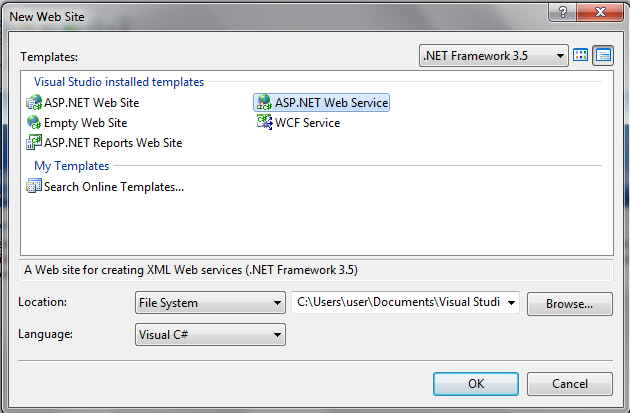
Create new webservice application in Asp.net

Open visual studio ---> Select File ---> New ---> Web Site ---> select ASP.NET Web Service


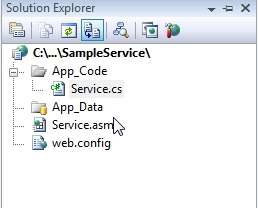
Now our new web service ready our webservice website like this


Now open your Service.cs file in web service website to write the code to get the user details from database
 
Before writing the WebMethod in Service.cs first add following namespaces
 
using System.Xml;
using System.Configuration;
using System.Data;
using System.Data.SqlClient;  
 
After adding namespaces write the following method GetUserDetails in Service.cs page
 
[WebMethod]
public XmlElement GetUserDetails(string userName)
{
SqlConnection con = new SqlConnection(ConfigurationManager.ConnectionStrings["dbconnection"].ToString());
con.Open();
SqlCommand cmd = new SqlCommand("select * from UserInformation where UserName like @userName+'%'", con);
cmd.Parameters.AddWithValue("@userName", userName);
cmd.ExecuteNonQuery();
SqlDataAdapter da = new SqlDataAdapter(cmd);
// Create an instance of DataSet.
DataSet ds = new DataSet();
da.Fill(ds);
con.Close();
// Return the DataSet as an XmlElement.
XmlDataDocument xmldata = new XmlDataDocument(ds);
XmlElement xmlElement = xmldata.DocumentElement;
return xmlElement;
}
 
Here we need to remember one point that is adding [WebMethod] before method definition because we need to access web method pulically otherwise it’s not possible to access method publically. If you observe above code I converted dataset to XmlElement t because sometimes we will get error like return type dataset invalid type it must be either an IListSource, IEnumerable, or IDataSource to avoid this error I converted dataset to XmlElement.
 
Here we need to set the database connection in web.config because here I am getting database connection from web.config  
 
<connectionStrings>
<add name="dbconnection" connectionString="Data Source=SureshDasari;Integrated Security=true;Initial Catalog=MySampleDB"/>
</connectionStrings>
 
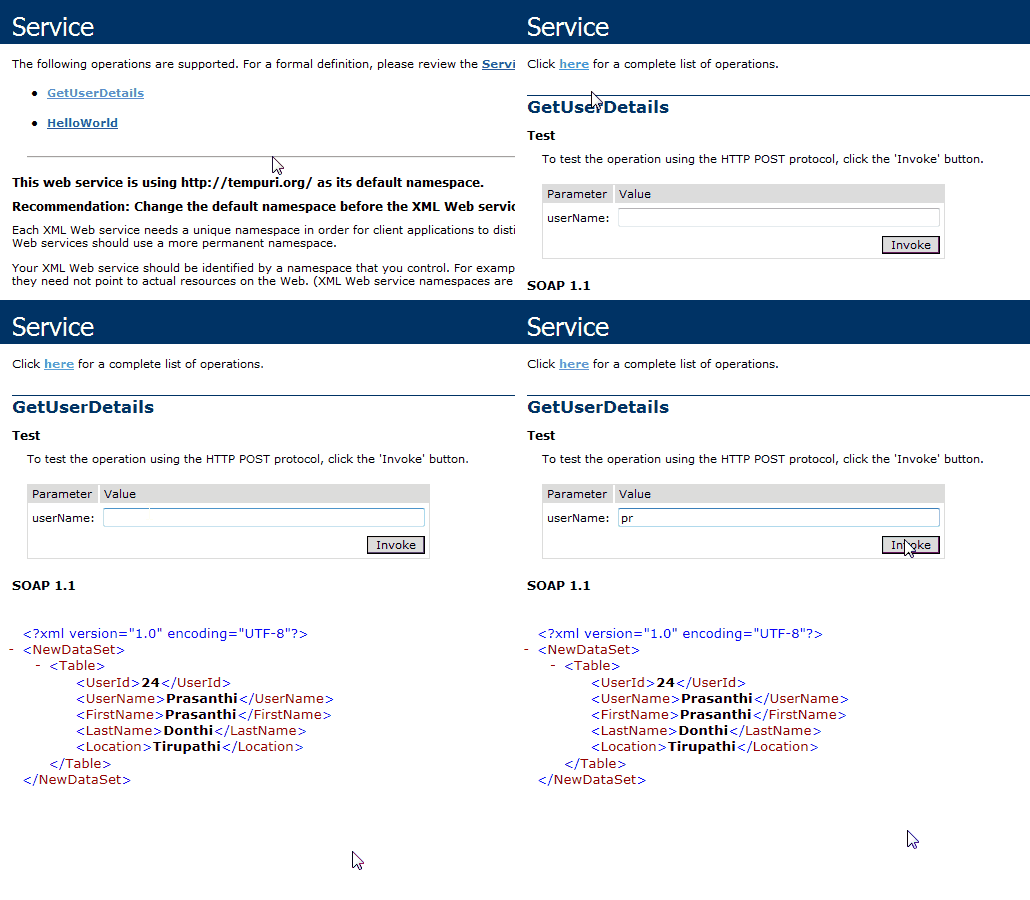
Now run your web service it would be like this 


Our web service is working fine now we need to know how we can use webservice in our application? Before to know about using web service in application first Deploy your webservice application in your local system .


webservice

What is Web Service?

Web Service is an application that is designed to interact directly with other applications over the internet. In simple sense, Web Services are means for interacting with objects over the Internet. The Web serivce consumers are able to invoke method calls on remote objects by using SOAP and HTTP over the Web. WebService is language independent and Web Services communicate by using standard web protocols and data formats, such as
  • HTTP
  • XML
  • SOAP
Advantages of Web Service

Web Service messages are formatted as XML, a standard way for communication between two incompatible system. And this message is sent via HTTP, so that they can reach to any machine on the internet without being blocked by firewall.

Examples for Web Service
Weather Reporting: You can use Weather Reporting web service to display weather information in your personal website.
Stock Quote: You can display latest update of Share market with Stock Quote on your web site.
News Headline: You can display latest news update by using News Headline Web Service in your website.
In summary you can use any web service which is available to use. You can make your own web service and let others use it. Example you can make Free SMS Sending Service with footer with your advertisement, so whosoever use this service indirectly advertise your company... You can apply your ideas in N no. of ways to take advantage of it.
Frequently used word with web services
What is SOAP?
SOAP (simple object access protocol) is a remote function calls that invokes method and execute them on Remote machine and translate the object communication into XML format. In short, SOAP are way by which method calls are translate into XML format and sent via HTTP.
What is WSDL?
WSDL stands for Web Service Description Language, a standard by which a web service can tell clients what messages it accepts and which results it will return.
WSDL contains every detail regarding using web service and Method and Properties provided by web service and URLs from which those methods can be accessed and Data Types used.
What is UDDI?
UDDI allows you to find web services by connecting to a directory.
What is Discovery or .Disco Files?
Discovery files are used to group common services together on a web server. Discovery files .Disco and .VsDisco are XML based files that contains link in the form of URLs to resources that provides discovery information for a web service. Disco File contains URL for the WSDL, URL for the documentation and URL to which SOAP messages should be sent.

Tuesday, 4 February 2014

Write a Simple .asmx Web Service

  1. Open Visual Studio .NET.
  2. On the File menu, click New and then click Project. Under Project types click Visual C# Projects, then click ASP.NET Web Service under Templates. Type MathService in the Location text box to change the default name (WebService1) to MathService.
  3. Change the name of the default Web service that is created from Service1.asmx to MathService.asmx.
  4. Click Click here to switch to code view in the designer environment to switch to code view.
  5. Define methods that encapsulate the functionality of your service. Each method that will be exposed from the service must be flagged with a WebMethod attribute in front of it. Without this attribute, the method will not be exposed from the service.

    NOTE: Not every method needs to have the WebMethod attribute. It is useful to hide some implementation details called by public Web service methods or for the case in which the WebService class is also used in local applications. A local application can use any public class, but only WebMethod methods will be remotely accessible as Web services.

    Add the following method to the MathServices class that you just created:
     
    [WebMethod]
    public int Add(int a, int b)
    {
       return(a + b);
    }
    
    [WebMethod]
    public System.Single Subtract(System.Single A, System.Single B)
    {
       return (A - B);
    }
    
    [WebMethod]
    public System.Single Multiply(System.Single A, System.Single B)
    {
       return A * B;
    }
    
    [WebMethod]
    public System.Single Divide(System.Single A, System.Single B)
    {
       if(B == 0)
          return -1;
       return Convert.ToSingle(A / B);
    }
         
  6. Click Build on the Build menu to build the Web service.
  7. Browse to the MathService.asmx Web service page to test the Web service. If you set the local computer to host the page, the URL is http://localhost/MathService/MathService.asmx.

    The ASP.NET runtime returns a Web Service Help Page that describes the Web service. This page also enables you to test different Web service methods.

Sql Connections in asp.net

Opening and Closing Connections
Case in point: managing of sql database connection resources. How many of us learned to write something like this:

// Create a new SQL Connection object
SqlConnection conn = new SqlConnection( connectionString );

// Open the connection to the database
conn.Open();
// Create a new SQL Command
SqlCommand cmd = new SqlCommand( “DELETE FROM BabyNames;”, conn );
// Execute the command
cmd.ExecuteNonQuery();
// Close the database connection
conn.Close();

Sure it’s easy to follow, but if you deploy that on a moderately busy server you are going to make your client very unhappy.

Insert Data into Database-

Asp.Net-Connection String

ASP.NET Connection String


A connection string provides the information that a provider needs to communicate with a particular database. The Connection String includes parameters such as the name of the driver, Server name and Database name , as well as security information such as user name and password.

An ADO.NET Data Provider is a class that can communicate with a specific type of database or data store. Usually Data Providers use a connection string containing a collection of parameters to establish the connection with the database through applications. The .NET Framework provides mainly three data providers, they are


  Microsoft SQL Server
  OLEDB

 ODBC


Here you can see how to make a connection string to the following ADO.NET Data Providers.
Microsoft SQL Server Connection String
  connetionString="Data Source=ServerName;Initial Catalog=Databasename;
User ID=UserName;Password=Password";
OLEDB Data Provider Connection String
  connetionString="Provider=Microsoft.Jet.OLEDB.4.0;
Data Source=yourdatabasename.mdb;"
ODBC Connection String
  connetionString="Driver={Microsoft Access Driver (*.mdb)};
DBQ=yourdatabasename.mdb;"
You have to provide the necessary connection information to the Connection String attributes

Web.config and ConnectionString


You can store connection strings in the Web.config file and reference the configuration entries in data source controls. You can create connectionStrings element within the Element element, by create a child element named and place your connection strings there.
<configuration>
 <connectionStrings>
   <add name="RamaConnectionString"
  connectionString="Server=Rama-PC; Database=Test; User Id=sa; password= Admin123"
  providerName="System.Data.SqlClient" />
 </connectionStrings>
</configuration>
 
You can access the connectionstring value  at run time in your ASP.NET application as shown in the following example.


C#

 string conn = ConfigurationManager.ConnectionStrings["RamaConnectionString"].ToString();

ASP.NET Sql Server Connection


 The SqlConnection Object is Handling the part of physical communication between the ASP.NET application and the SQL Server Database . An instance of the SqlConnection class in ASP.NET is supported the Data Provider for SQL Server Database.

C#

string conn = ConfigurationManager.ConnectionStrings["RamaConnectionString"].ToString();


When the connection is established , SQL Commands will execute with the help of the Command Object and retrieve or manipulate the data in the database. Once the Database activities is over , Connection should be closed and release the Data Source resources .

The Close() method in SqlConnection Class is used to close the Database Connection. The Close method rolls back any pending transactions and releases the Connection from the SQL Server Database.
The following ASP.NET program connect to a database server and display the message in the Label control.
web.config
<?xml version="1.0"?>
<configuration>  
<connectionStrings>
   <add name="RamaConnectionString"
  connectionString="Server=Rama-PC; Database=Test; User Id=sa; password= Admin123"
  providerName="System.Data.SqlClient" />
 </connectionStrings>
</configuration>
You have to fill appropriate web.config database parameters

Default.aspx

<!DOCTYPE html PUBLIC "-//W3C//DTD XHTML 1.0 Transitional//EN" "http://www.w3.org/TR/xhtml1/DTD/xhtml1-transitional.dtd">
<html xmlns="http://www.w3.org/1999/xhtml">
<head id="Head1" runat="server">
 <title>Untitled Page</title>
</head>
<body>
 <form id="form1" runat="server">
 <div>
  <asp:Button ID="Button1" runat="server" Text="Button" onclick="Button1_Click" />
 </div>
 <asp:Label ID="Label1" runat="server" Text="Label"></asp:Label>
 </form>
</body>
</html>

default.aspx.cs

using System;
using System.Data ;
using System.Data.SqlClient ;
using System.Configuration; 

public partial class _Default : System.Web.UI.Page
{
 protected void Button1_Click(object sender, EventArgs e)
 {
  string connectionString = ConfigurationManager.ConnectionStrings["RamaConnectionString"].ToString();
  SqlConnection connection = new SqlConnection(connectionString);
  connection.Open();
  Label1.Text = "Connected to Database Server !!";
  connection.Close();
 }
}